
Polycue

Spoken cues for timed steps

Polycue is a multi timer for iPhone. It runs several tracks of steps at once and tells you out loud when something changes. Plan a routine once, tap Start, and keep your hands and eyes on the work. Or just describe it, and AI builds the flow (Unlimited).

Coming to the App Store

For iPhone. In English and German.

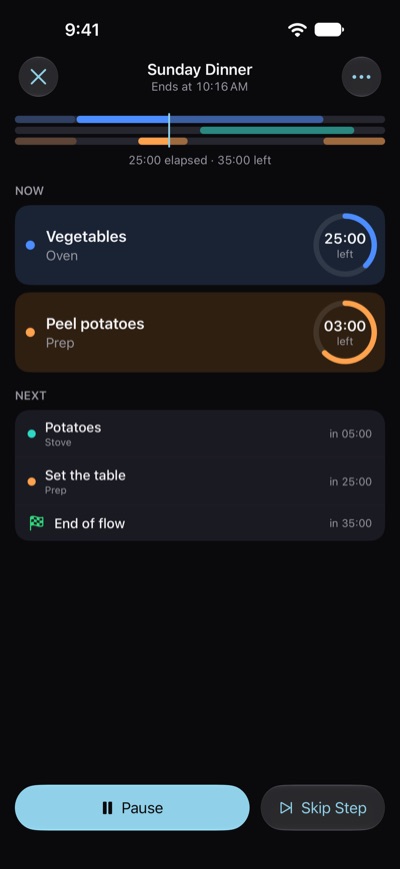
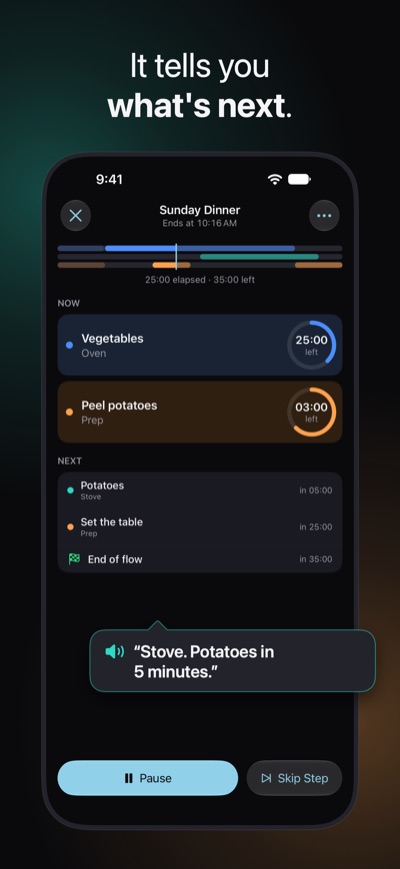
The Polycue player running Sunday Dinner, with the end time at the top, Vegetables and Peel potatoes under Now with the time each has left, and Potatoes and Set the table under Next.

Polycue says: “Stove. Potatoes in 5 minutes.”

Who it's for

How it works

Build a flow, run it, listen. That's it.

  1. Build a flow

    A flow is your routine: one or more tracks of timed steps, all on the same timeline. Start with a template such as Sunday Dinner or School Morning or with a blank flow, or describe your routine and let Create with AI build it (Unlimited). Add a track for each thing that runs on its own, like the oven, the stove and the prep, then give every step a name and a duration. Polycue works out the total for you.

  2. Run it

    Open the flow and tap Start. The player shows what's running now, how long each step has left and what's next. It also shows when the whole run will be done, and if you pause, skip a step or add a minute, that time moves with you.

  3. Hear the cues

    Every time a step changes, Polycue plays a short tone and tells you what's going on, for example “Oven. Vegetables done. Set the table.” You can put your iPhone down or lock it: the cues keep coming, and the Lock Screen shows what's next.

Everything gets its own track.

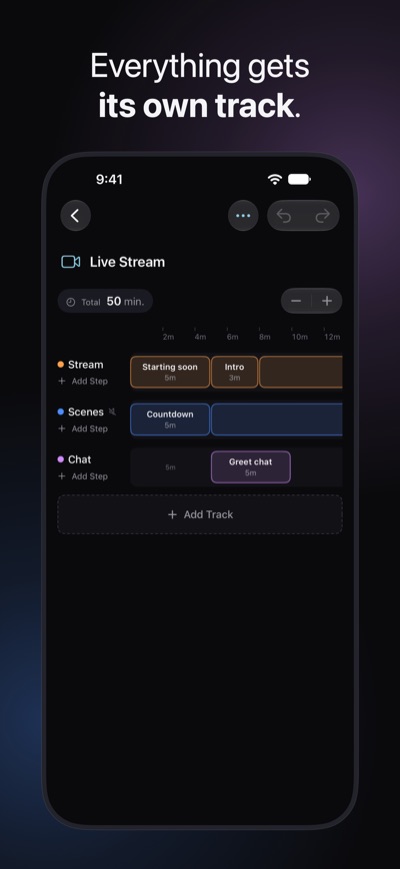
Most routines aren't one countdown. Dinner means vegetables in the oven, potatoes on the stove and a table to set. A school morning means the kids getting ready while you make breakfast and pack the bags. In Polycue each of them runs on a track of its own, and all tracks share one timeline, so you see at a glance what overlaps and what comes after. And unlike several timers you start one by one, the tracks stay in step.

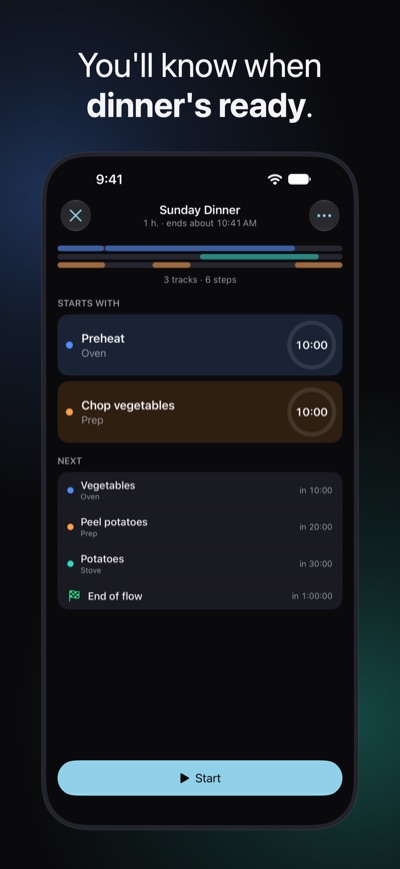
Polycue adds up the total from your plan, and the player shows when the whole run will end. Pause, skip a step or add a minute, and that time moves with you, so you always know when everything will be done.

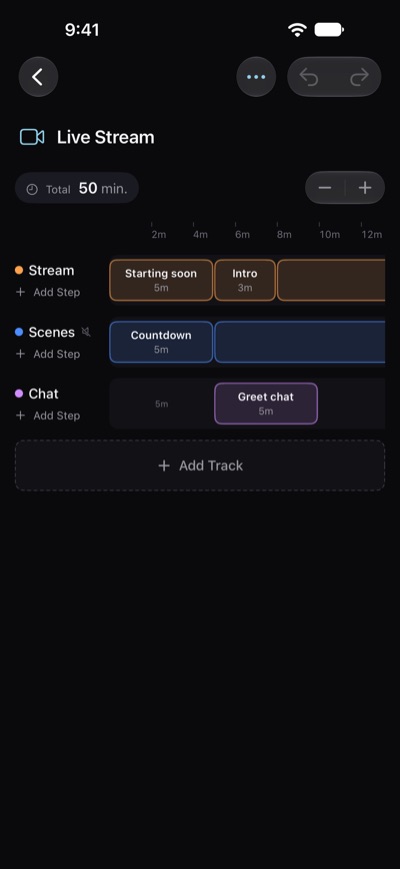
The editor with Live Stream: three tracks, Stream, Scenes and Chat, with the steps of the stream's first part on one timeline, 50 min in total.

It tells you what's next.

Polycue says a step's name when it starts and, if you like, when it ends: “Stove. Potatoes done.” If you need to get ready for a step, turn on a heads-up, such as “Stove. Potatoes in 5 minutes.” Heads-ups are off until you turn them on, so you only hear what you asked for.

You can give a step a shorter spoken name, mute a track you only need to see, or go with tones only, in one of three tone styles. While a cue speaks, your music or podcast gets quieter and then plays on as before, so Polycue works as a voice timer alongside whatever you're listening to.

Spoken cues from the Sunday Dinner template

  1. 0:00Oven. Preheat. Chop vegetables.
  2. 10:00Oven. Vegetables.
  3. 25:00Stove. Potatoes in 5 minutes.

Hear it all before you start.

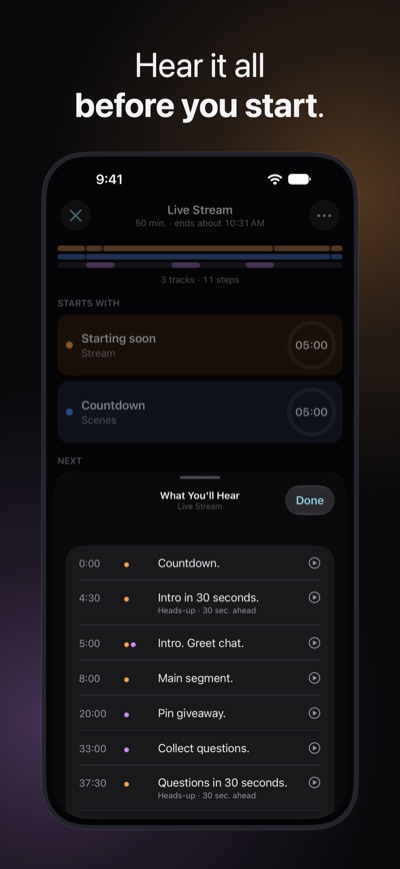
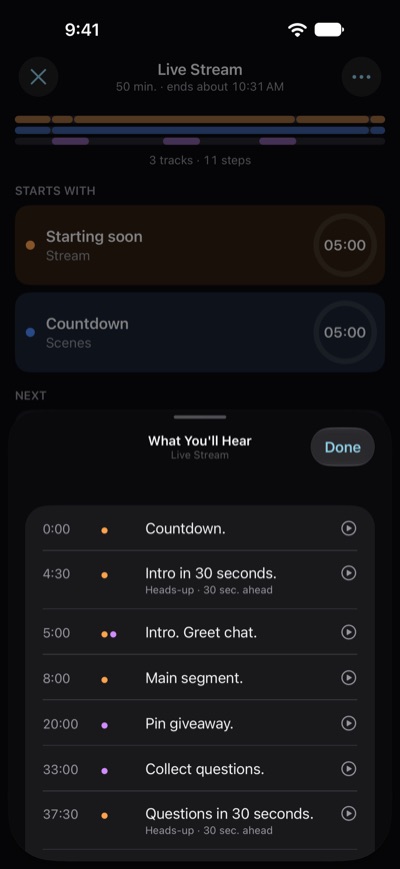
Before you start, What You'll Hear lists everything Polycue will say during a flow, and when: every start, every end and every heads-up. Tap a row to hear it.

Think of it as a run of show you can listen to. For a podcast or a live stream you know exactly what you'll hear and when, so nothing surprises you in the middle of a show. It's in the ⋯ menu, in both the player and the editor.

What You'll Hear for Live Stream before the start: every sentence Polycue will say, each with its time, from the countdown on.

Lock your iPhone, it still talks.

Put your iPhone face down, lock it or switch to another app: as long as a session runs with sound or voice on, the cues keep coming. A cooking timer that goes quiet when the screen turns off is no help with flour on your hands.

A Live Activity on the Lock Screen, and in the Dynamic Island on iPhones that have one, shows the end time, the next step and a Pause button. If Polycue is closed, the session's time keeps counting, and the player picks it up when you open the app again.

A Live Activity on the Lock Screen for Interval Workout, with the end time, the next exercise and a Pause button.

Create with AI.

Unlimited

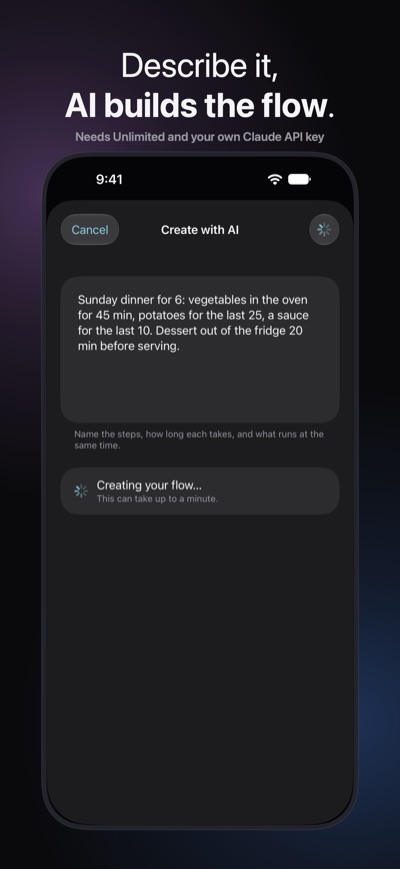
Describe a routine in your own words, and Create with AI turns it into a flow with parallel tracks. Name the steps, how long each takes and what runs at the same time. The new flow opens in the editor, so you can check and adjust it before you run it.

Create with AI uses your own Claude API key. Requests go from your iPhone straight to Anthropic and are billed to your Anthropic account, not through Polycue. There's no server of ours in between, and we never see what you type.

Example description:

A 20-minute dinner: pasta 12 min, sauce 15 min, salad 5 min at the end

Made for routines that overlap.

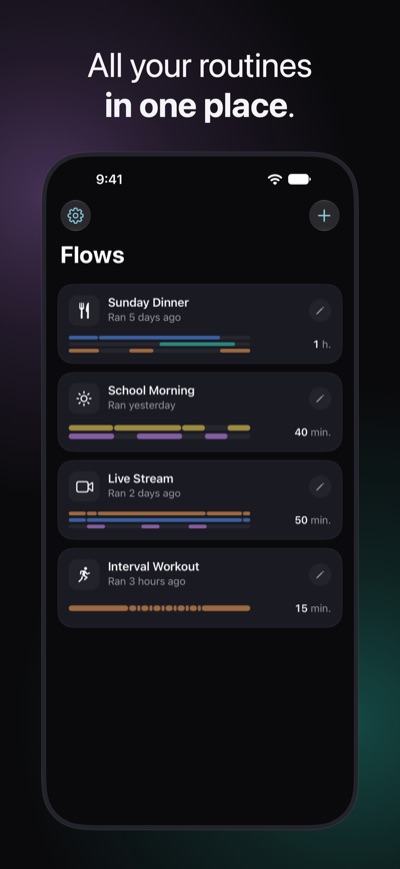
Polycue comes with six templates, from a school morning to a live stream. Each one is an ordinary flow, so change it as you like or use it as a starting point for your own.

Cooking: everything ready together

Use Polycue as a kitchen timer for meals with several parts. The Sunday Dinner template plans one hour on three tracks: the oven preheats and the vegetables go in for 40 minutes, the potatoes boil on the stove, and the prep track tells you when to chop the vegetables, peel the potatoes and set the table. The vegetables come out five minutes before the potatoes are done, so everything reaches the table together. You hear “Stove. Potatoes in 5 minutes.” and “Oven. Vegetables done. Set the table.” without looking at the screen.

Mornings: out the door on time

The School Morning template turns your morning routine into 40 minutes on two tracks, Kids and Grown-ups. The kids get dressed, eat breakfast and brush their teeth while you make breakfast, fill the lunchboxes and pack the bags. Start it 40 minutes before you have to leave, and the end of the flow is when you walk out the door. Ten minutes before that, Polycue says “Pack bags. Shoes and jacket in 5 minutes.” The kids hear it from Polycue, so you don't have to say it three times.

Meetings: through the agenda on time

The Team Meeting template is a meeting timer for a 30-minute agenda: 3 minutes to check in, 7 for updates, 15 for the main topic and 5 to wrap up. Polycue says each item as it starts, so nobody has to watch the clock, and “Wrap-up in 2 minutes.” gives everyone time to finish their point. Change the items and times to fit your own meetings.

Workouts: an interval timer that talks

The Interval Workout template is a 15-minute HIIT timer: a 5-minute warm-up, six exercises from squats to mountain climbers, each 40 seconds with 20 seconds of rest after it, and a 4-minute cool-down. Polycue names each exercise as it starts, and the rest already tells you what's next: “Rest. Push-ups in 20 seconds.” Your music keeps playing underneath.

Focus work: Pomodoro rounds

The Pomodoro template is a Pomodoro timer with four 25-minute focus rounds, short breaks in between and a long break at the end. A minute before the next round, Polycue lets you know, so you can enjoy your break without watching the clock.

Live streams: every segment on cue

The Live Stream template is a 50-minute stream rundown on three tracks: the segments of the show, the scenes to switch, and the moments for the chat, such as pinning a giveaway or collecting questions. Like a floor manager, Polycue warns you 30 seconds before the intro, the Q&A and the outro, for example with “Questions in 30 seconds.”, so you can finish what you're saying without checking a clock.

Teaching and workshops: stations and breaks

Plan a lesson or a workshop agenda with a track per group or per room: stations, group work, presentations and breaks, each with its time. Polycue tells everyone when to switch, so you can stay with the group instead of watching the clock. Start from a blank flow, or describe the session to Create with AI (Unlimited).

Also included

Your flows stay on your iPhone.

No account

No sign-up and no login. Open Polycue and start.

No tracking

No analytics and no advertising, in the app or on this site.

No server

Polycue has no server. Your flows and settings stay on your iPhone, and we can't see them.

Only Create with AI sends something: the description you type, from your iPhone straight to Anthropic, with your own API key and under your own Anthropic account.

Read the privacy policy

Start for free.

Try Polycue with one flow, either a template or your own, and every feature except Create with AI. If you want to keep more flows, go for Unlimited.

Free

Every feature except Create with AI, for one flow.

Unlimited

As many flows as you need, plus Create with AI. Choose a monthly or yearly subscription, or a one-time lifetime purchase.

The App Store shows the prices in your currency.

Subscriptions renew automatically until you cancel them in your Apple Account settings.

If a subscription ends, nothing is deleted or locked: your flows stay and keep running.

Questions

Can Polycue run several timers at once?

Yes, that's exactly what it's for. Each timer is a track in a flow, and all tracks run on one timeline from the moment you tap Start, so they stay in step and end when you planned. The difference is that you plan the timers ahead. If you'd rather start loose timers one at a time, whenever you feel like it, a classic multi timer may suit you better.

Does Polycue keep going with the screen locked?

Yes. While a session runs with sound or voice on, the cues keep playing when you lock your iPhone or switch to another app. A Live Activity on the Lock Screen shows the end time and the next step, and you can pause from there. If you turn sound and voice both off, the timers keep counting, but the Live Activity only updates when you open Polycue again.

Does my music keep playing?

Yes. Music, podcasts and audiobooks from other apps keep playing. Polycue turns them down while a cue speaks and back up afterwards.

What can I do for free?

With Free you get every feature except Create with AI, for one flow: a template or one of your own. Unlimited lets you keep as many flows as you need and adds Create with AI, as a monthly or yearly subscription or a one-time lifetime purchase. If a subscription ends, nothing is deleted or locked: all your flows stay and keep running. You just can't add new ones beyond the one flow Free allows.

Do I need an account, and is my data uploaded?

No account and no sign-up. Your flows and settings stay on your iPhone, and Polycue has no server to upload them to. The one exception is Create with AI: when you tap Create, the description you typed goes from your iPhone straight to Anthropic, with your own API key. Your flows can also be part of your iPhone backup, which Apple protects.

How does Create with AI work, and what does it cost?

Describe a routine in your own words: the steps, how long each takes and what runs at the same time. Create with AI turns it into a new flow that opens in the editor, so you can check it before you start. It is part of Unlimited and needs your own Claude API key from Anthropic, which bills each request to your Anthropic account; the cost depends on the model you choose in Settings and on Anthropic's prices. Polycue adds no fee and never sees the requests.

Can I share a flow or move it to another iPhone?

Yes, as a file. Touch and hold a flow in the library, choose Export…, and send or save the file. On the other iPhone, open the file with Polycue or use + › Import… in the library. There is no account and no sync, so flows never move between devices on their own. An imported flow counts as a new flow, so a second one needs Unlimited.

Which iPhones and languages does Polycue support?

Polycue runs on iPhone with iOS 26 or later. The app and its spoken cues are in English and German. It follows your iPhone's language, and you can choose the other one in Settings › Language. The cues use the voices on your iPhone, and Polycue shows you how to add a better one.

You plan the steps, Polycue calls them out.

Coming to the App Store